FS25 Hella LED Prefab v1.0.0.0
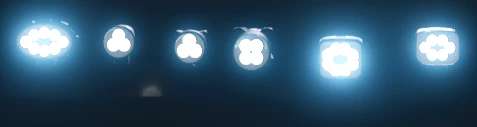

FS25 Hella LED Prefab v1.0.0.0
Hello everyone,
Here I’m making my Hella LED prefab file available to you.
This is intended as an installation option and can replace the original files.
I’m not a big fan of pure white lights; I prefer a color balance.
Likewise, I’m not a fan of so-called emissive lights, where only the lens illuminates and the light is merely suggested.
In this version, the LEDs are implemented separately. This means that only the LEDs light up,
while neither the frame nor the lens emits any light.
Installation Instructions XML
Insert the following entry between <lights> and </lights> in the vehicle’s XML:
Code
<sharedLight linkNode=”X>X|X|X” filename=”shared/lights/Hella_LED/hellaWorkingLight05.xml” lightTypes=”Y”/>
Make sure to adjust the `linkNode` value and the `lightTypes` entry according to your desired configuration.
i3d Installation Instructions (LS25)
Create a TransformGroup, name it as desired, and ensure it is located at the origin (0|0|0).
Now, place the desired light in this TransformGroup and position the entire TransformGroup at the desired location on the vehicle, trailer, or attachment.
Then, delete the light from the TransformGroup, but note the TransformGroup’s node (top right in the GE).
This node is needed to replace the “XXX” entry in the sharedLight.
Copy the sharedLight entry, adjust it accordingly with your node (XXX) and the desired Y-value, and paste it into the XML between <lights> and </lights>.
If you have done everything correctly, you will know that the light can be switched on in the game.
If you have done everything correctly, you will know that the light can be switched on in the game.
Example Code:
<lights>
<sharedLight linkNode=”XXX” filename=”shared/lights/Hella_LED/hellaWorkingLight05.xml” lightTypes=”Y”/>
</lights>
Replace XXX with the corresponding node from the GE and Y with the desired light type.
In most cases, <lights></lights> already exists.
You simply need to add the entry `sharedLight` there.
`linkNode=”X>X|X|X”` describes the LinkNode that you can find in the upper right corner of the GE.
Enter this value in place of “XXX”.
The “Y” symbolizes the light type.
Key assignment: (Change the “Y” as desired)
0 = Parking lights / Low beams (1x F key)
1 = Rear work lights (2x F key)
2 = Front work lights (3x F key)
3 = High beams (Key combination: Ctrl + F)
For any questions, please feel free to contact me on Instagram at Dachau_Agrar or here in the forum.
Dachau_Agrar